
About MxIPTV Player
MxIPTV Player is a fast, lightweight media player designed specifically for Android TV and Google TV devices. Manage and stream your personal media playlists with an intuitive interface optimized for standard TV remote controls (D-Pad navigation).
Key Features
- Designed for TV: clean, leanback-optimized user interface for Android TV, Google TV, and TV boxes.
- The application is now also functional on mobile phones and tablets.
- Easy Playlist Setup: connect your playlists quickly via our web management portal using your device ID / MAC address.
- Playlist Support: compatible with standard M3U playlists and Xtream Codes API.
- Live TV & EPG: Electronic Program Guide (EPG) support for easy channel navigation.
- Catch-up Support: easily replay past broadcasts and missed shows directly from the EPG grid (requires provider support).
- VOD & Series: organized browsing for video-on-demand content and TV series included in your playlist.
- Remote Friendly: full navigation control using standard TV remotes without requiring a mouse or touchscreen.
App screenshots
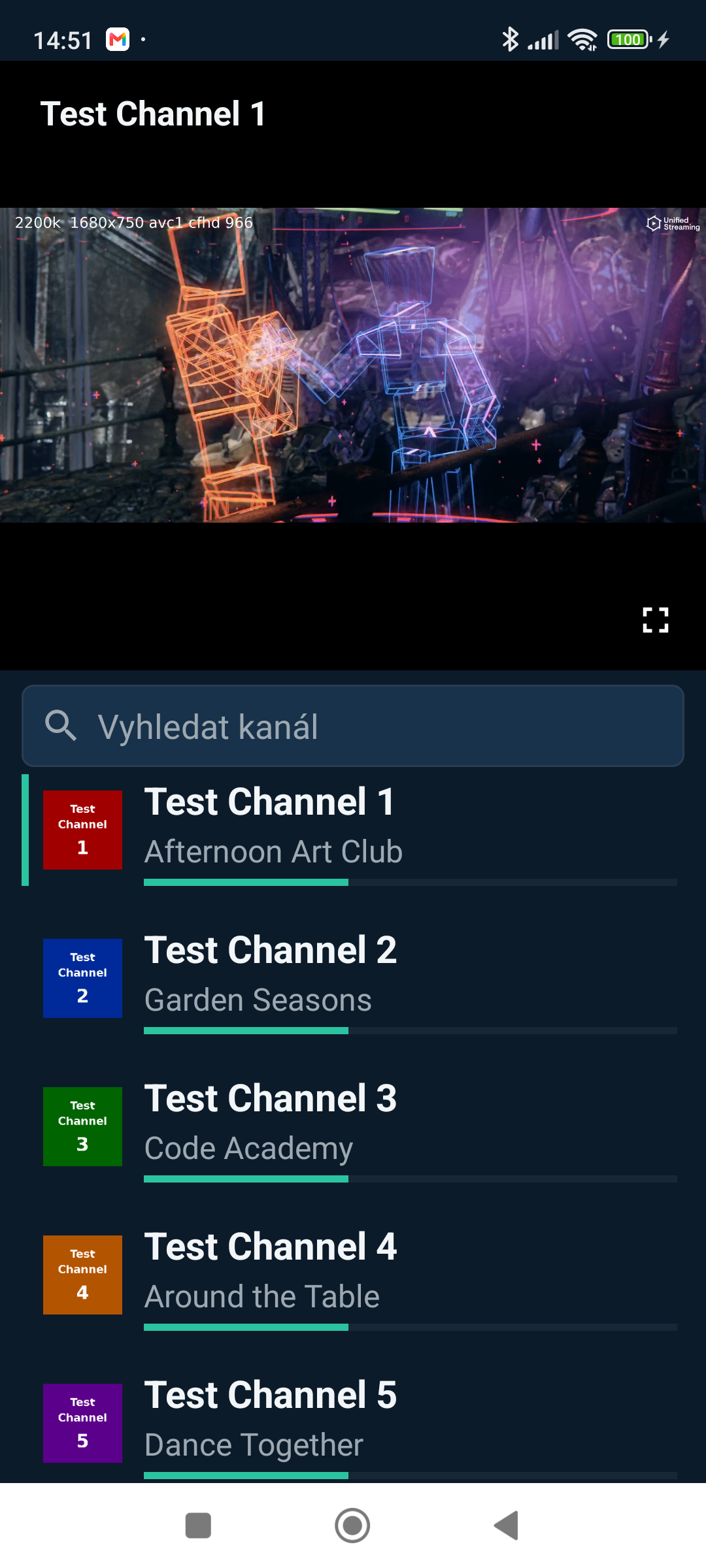
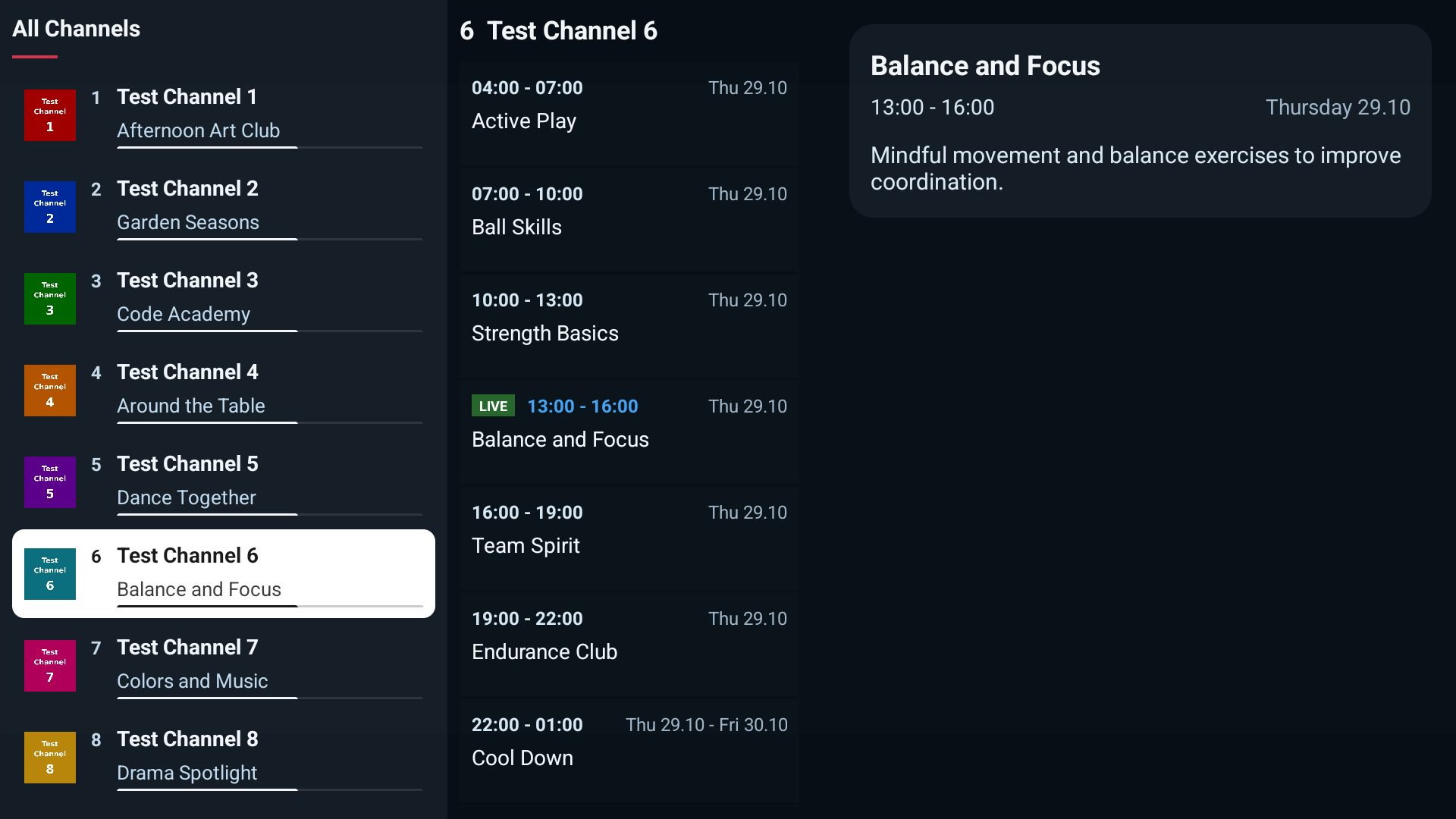
⚠️ Disclaimer
MxIPTV Player is strictly a media player application and DOES NOT supply, host, broadcast, or include any media, channels, or copyrighted content.
Users must provide their own playlists and content from their legally authorized service providers.
MxIPTV Player has no relationship, affiliation, or partnership with any third-party IPTV providers or subscription sellers.
We do not support, promote, or condone the streaming or playback of copyright-protected material without explicit permission from the respective copyright owners. To use this application, the user must already possess their own legal media stream or playlist.
Guide
How to install and use MxIPTV player step by step.
- 1
Install APP.
- 2
Open the app and write down the MAC address shown on the home screen.
- 3
On this website enter the MAC address and upload your playlist (Xtream Codes or M3U URL/file).
- 4
The app automatically connects and downloads the playlist and EPG.
- 5
After the 7-day trial, activate your device with a one-time payment.
📚 Multiple playlists (how to)
- You can upload several playlists for one device (MAC). Each playlist is added separately and can be switched in the app.
- Xtream: Xtream Codes is added one at a time – submit the form again to add another.
- M3U: M3U lets you add multiple sources at once – each source is one M3U URL (or file) with an optional EPG.
- In the app: open "Playlists" at the top of the category list to switch. Delete a playlist using the trash icon next to it.
📱 Mobile touch controls
On phones and tablets, control the app by touch:
- Tap on the left side to open the channel list (EPG guide).
- Tap in the middle to open audio and subtitle settings.
- Swipe up from the bottom to open the info panel (program title, time, progress and description).
Playlist instructions
How to add catch-up (timeshift) tags and DRM (Widevine / ClearKey) information to your M3U playlist. MxIPTV Player reads these directives and applies them automatically.
📡 EPG attributes (tvg-id, tvg-name, tvg-logo, group-title)
Attributes on the #EXTINF line are used to map the channel to the EPG (electronic program guide) and to categorize it:
#EXTINF:-1 tvg-id="ct1" tvg-name="Channel One" tvg-logo="http://logo.png" group-title="News",Channel name
http://server/live/stream/1
- tvg-id – the channel identifier for EPG. It must match
<channel id="...">in the EPG (XMLTV) file. - tvg-name – the channel name (used as a fallback if the name after the comma is missing).
- tvg-logo – the channel logo URL.
- group-title – the channel category/group.
⏪ Catch-up (timeshift)
To enable catch-up, add the catchup-days (or timeshift) attribute with the number of days to the #EXTINF line:
#EXTINF:-1 tvg-id="ct1" tvg-logo="http://logo.png" group-title="News" catchup-days="7",Channel name
http://server/live/stream/1
The catch-up URL is generated automatically from the live URL by adding the utc (start) and lutc (now) parameters:
http://server/live/stream/1?utc={start_unix}&lutc={now_unix}
⚠️ The server must support timeshift via these query parameters (utc/lutc). The number of days (catchup-days) determines how far back the catch-up archive is available.
🛡️ DRM – Widevine
For a Widevine-protected stream (DASH/MPD), add these directives before the stream URL:
#KODIPROP:inputstream=inputstream.adaptive
#KODIPROP:inputstream.adaptive.manifest_type=mpd
#KODIPROP:inputstream.adaptive.license_type=widevine
#KODIPROP:inputstream.adaptive.license_url=https://drm.example.com/widevine/key
Supported license_type values: widevine, com.widevine.alpha, org.widevine.alpha.
🔑 DRM – ClearKey (known key)
If you know the key (KID:KEY), the stream plays without a license server:
#KODIPROP:inputstream=inputstream.adaptive
#KODIPROP:inputstream.adaptive.manifest_type=mpd
#KODIPROP:inputstream.adaptive.license_type=clearkey
#KODIPROP:inputstream.adaptive.license_key=KID:KEY
#KODIPROP:inputstream.adaptive.license_key=KID:KEY
KID and key are hexadecimal (16 bytes = 32 chars each). Multiple keys are supported — one license_key per line. ⚠️ ClearKey with cbcs encryption only plays on Android 13+ with the stock ClearKey plugin; cenc plays on all devices.
🔗 HTTP headers (Referer, Origin, User-Agent, Cookie)
Some servers require specific headers. Add them with #EXTVLCOPT or #EXTHTTP directives:
#EXTVLCOPT:http-user-agent=Mozilla/5.0 (Windows NT 10.0; Win64; x64) Firefox/159.0
#EXTVLCOPT:http-referrer=https://example.com/
#EXTVLCOPT:http-origin=https://example.com
#EXTVLCOPT:http-cookie=session=abc123
#EXTHTTP:{"X-Custom-Header":"value"}
ℹ️ Instructions
- You can find the MAC address on the MxIPTV app home screen
- Enter your server credentials or upload playlist and epg
- After submitting, the playlist will be loaded in the app automatically
Delete playlist
Remove all saved playlists for a device.
⚠️ Warning
- Deleting will remove ALL saved playlists (Xtream, M3U and EPG) for the device
- The app will return to the home screen on next launch
Activation
Activate your device with a one-time payment after the trial period.
🔑 Device activation
- After the 7-day trial, activation is required. One-time fee: 6.50 USD. Payment is securely processed via Stripe or PayPal. Keep your MAC address for support.
FAQ
Frequently asked questions.
📢 Notice to Users
Please do not send requests for playlists or channels. All such requests will be ignored. Thank you for understanding.
Does MxIPTV player contain any channels?
No, the MxIPTV player application does not contain any channels, and no information will be provided on where channels can be obtained. Furthermore, the application developers are not responsible for the content uploaded to the MxIPTV player.
Where can I get a playlist?
We do not provide playlists or any information about content providers.
Does the application work on a mobile phone or tablet?
Yes, it works, but the application is primarily intended for Android-Google TV - large screens, i.e. for wide-angle viewing..
Contact
Send us a message and we will get back to you.